Overview
In Overwatch 2’s Stadium mode, you can play with a third-person camera or switch back to the familiar first-person view. The option is useful if you prefer classic Overwatch aiming, want better awareness around corners, or simply want to test which camera feels better for your hero.
The exact key or button can vary depending on your platform and custom controls, so the safest method is to check the Stadium camera binding in the settings menu.
How to Switch Camera View in Overwatch Stadium
Step 1: Open the Options Menu
From the main menu or while in a Stadium match, open the game menu and go to Options. If you are already in a match, you can usually access this through the pause/menu screen.
On PC, press Esc to open the menu. On console, use the controller’s pause/menu button.
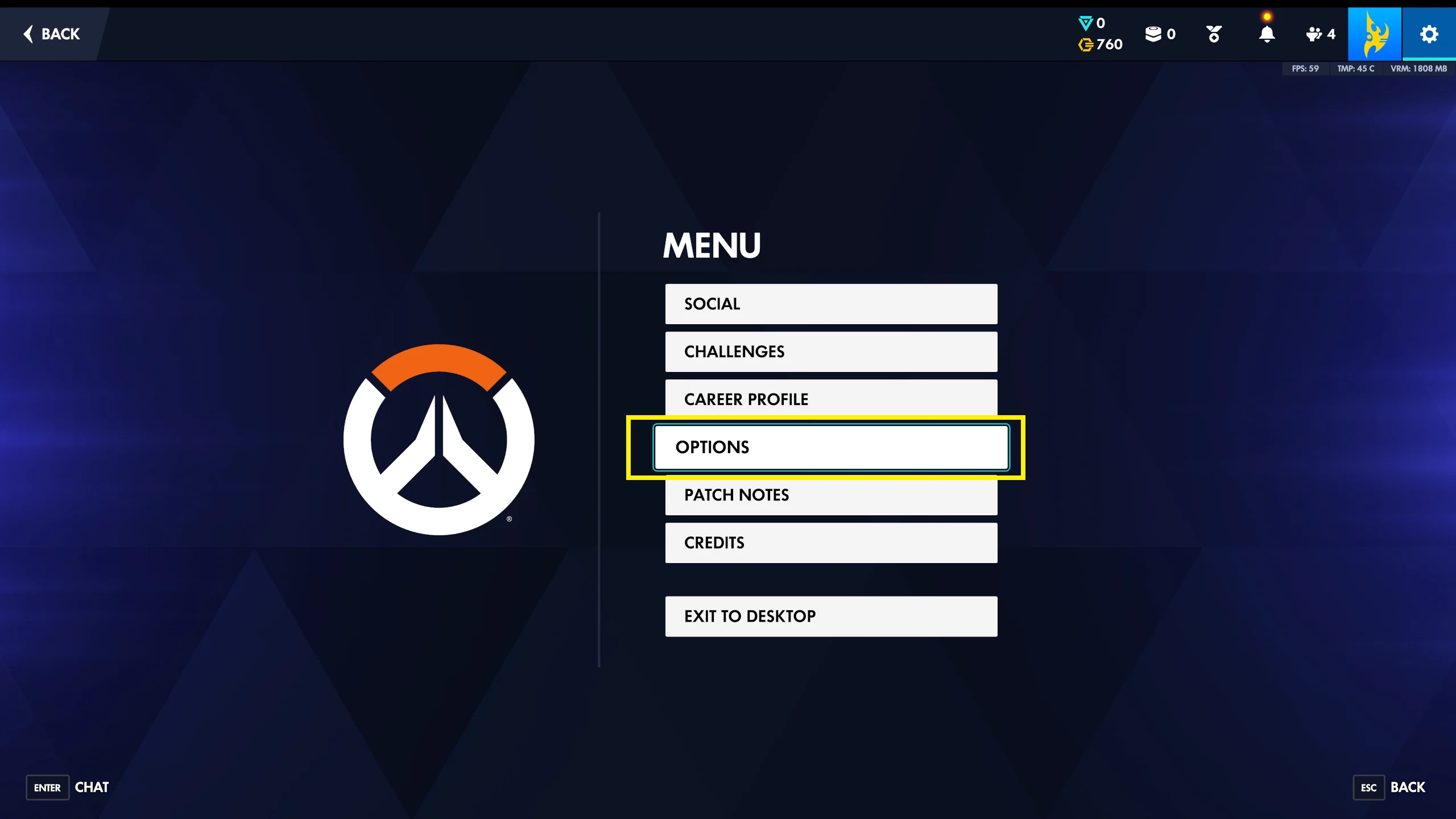
Step 2: Select Hero Tab
Inside Options, select the Hero tab then select the Stadium tab:
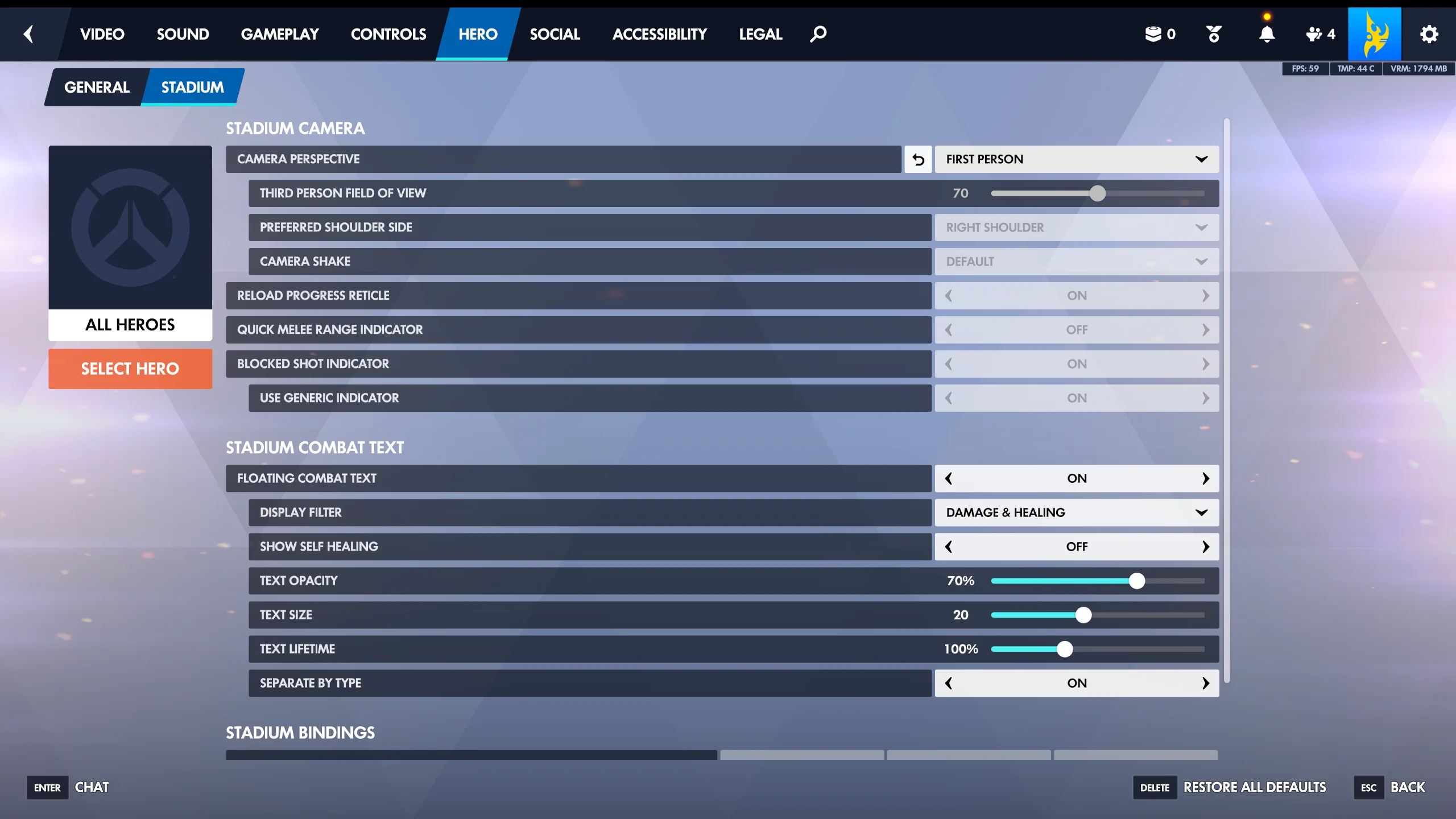
In the Stadium Camera section, you can click on the drop down labeled with Camera Perspective and choose FIRST PERSON or THIRD PERSON. Note that you can apply the settings for all heroes or for some heroes of your choice. For example, you can play Pharah and Genji in third-person perspective, but can still play Soldier 76 and Ashe in first-person perspective.
Step 3: Assign a Hot Key for Quick Switching
Look for a setting for Stadium Bindings near the bottom of the screen. The wording may differ slightly depending on the Overwatch version.
If a key or button is already assigned, that is the input you can use to switch between first-person and third-person view during Stadium gameplay. If nothing is assigned, click the binding slot and choose a key or controller button that is easy to reach.
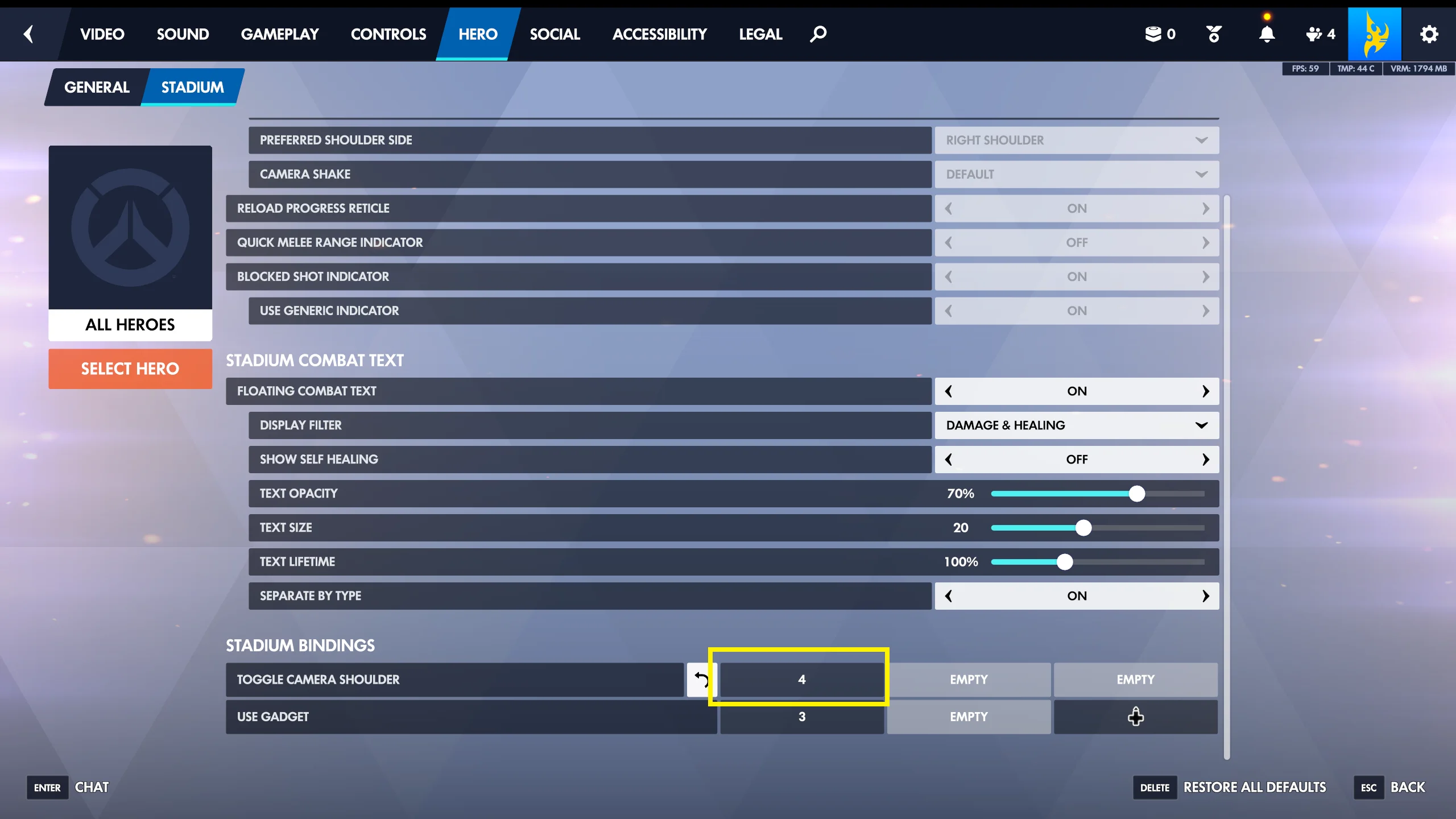
Step 4: Return to Stadium and Press the Toggle
After confirming the binding, return to your Stadium match or start a new one. Press the assigned key or button to switch camera perspective.
Use first-person view if you want the standard Overwatch feel and more precise visual alignment. Use third-person view if you prefer wider spatial awareness, especially when tracking enemy movement or positioning around cover.
Step 5: Adjust Your Sensitivity if Needed
First-person and third-person views can feel different even with the same mouse or stick sensitivity. If aiming feels too fast or too slow after switching, go back to Options → Controls → General and fine-tune your sensitivity.
You may also want to test the camera on different heroes. Hitscan heroes, projectile heroes, tanks, and supports can all feel slightly different depending on the perspective.
Conclusion
To switch between first-person and third-person view in Overwatch Stadium, open Options -> Hero → Stadium, scroll down to the Stadium Bindings section, assign or check its keybind, then press that input during gameplay.
If the toggle does not work, recheck your control profile and make sure the Stadium camera command is actually bound to a key or controller button.