Overview
You can be banned from playing ranked games (Competitive, Stadium Competitive) if you are disconnected from Blizzard's server or due to a game crash and NOT re-enter your current match within 2 minutes. The suspension can last a a few minutes, a few hours, or the whole season (a few months).
Random disconnects in Overwatch are usually caused by an unstable route between your device and Blizzard’s servers, local Wi-Fi drops, firewall interference, outdated network drivers, corrupted game files, or background software competing for bandwidth. The frustrating part is that the game may look smooth until you are suddenly removed from a match.
The best way to fix the issue is to work from the simplest checks to deeper network repairs. The steps below apply mainly to Overwatch 2 on PC, but several tips also help on PlayStation, Xbox, and Nintendo Switch.
How to Fix Overwatch Random Disconnecting Issues
Before changing advanced settings, note when the disconnects happen. If they occur only during peak hours, on Wi-Fi, or while other people are streaming, the cause is probably network stability. If Overwatch disconnects while other games work fine, focus on Battle.net, game files, security software, and routing.
Approach 1: Check for server-side or account-related issues first
Start by confirming that the problem is not on Blizzard’s side. If the Overwatch servers are having maintenance, login problems, or regional outages, local troubleshooting will not solve the disconnects.
- Visit Blizzard’s official support channels, Battle.net launcher notices, or the Overwatch social accounts for outage updates. Here's the link of the official Overwatch account on X (Twitter): https://x.com/PlayOverwatch
- Restart the Battle.net app completely. On Windows, close it from the system tray as well, then reopen it.
- Log out of Battle.net and sign back in to refresh your session.
- If you recently changed regions, try switching back to your usual region in the Battle.net launcher before starting the game.
If many players are reporting the same issue at the same time, wait for Blizzard to resolve it. If the issue appears isolated to your connection, continue with the next approaches.
Approach 2: Stabilize your local connection
Overwatch is sensitive to packet loss and short connection drops. Your internet speed can be high while your connection is still unstable, especially over crowded Wi-Fi.
Step 1: Restart your network equipment
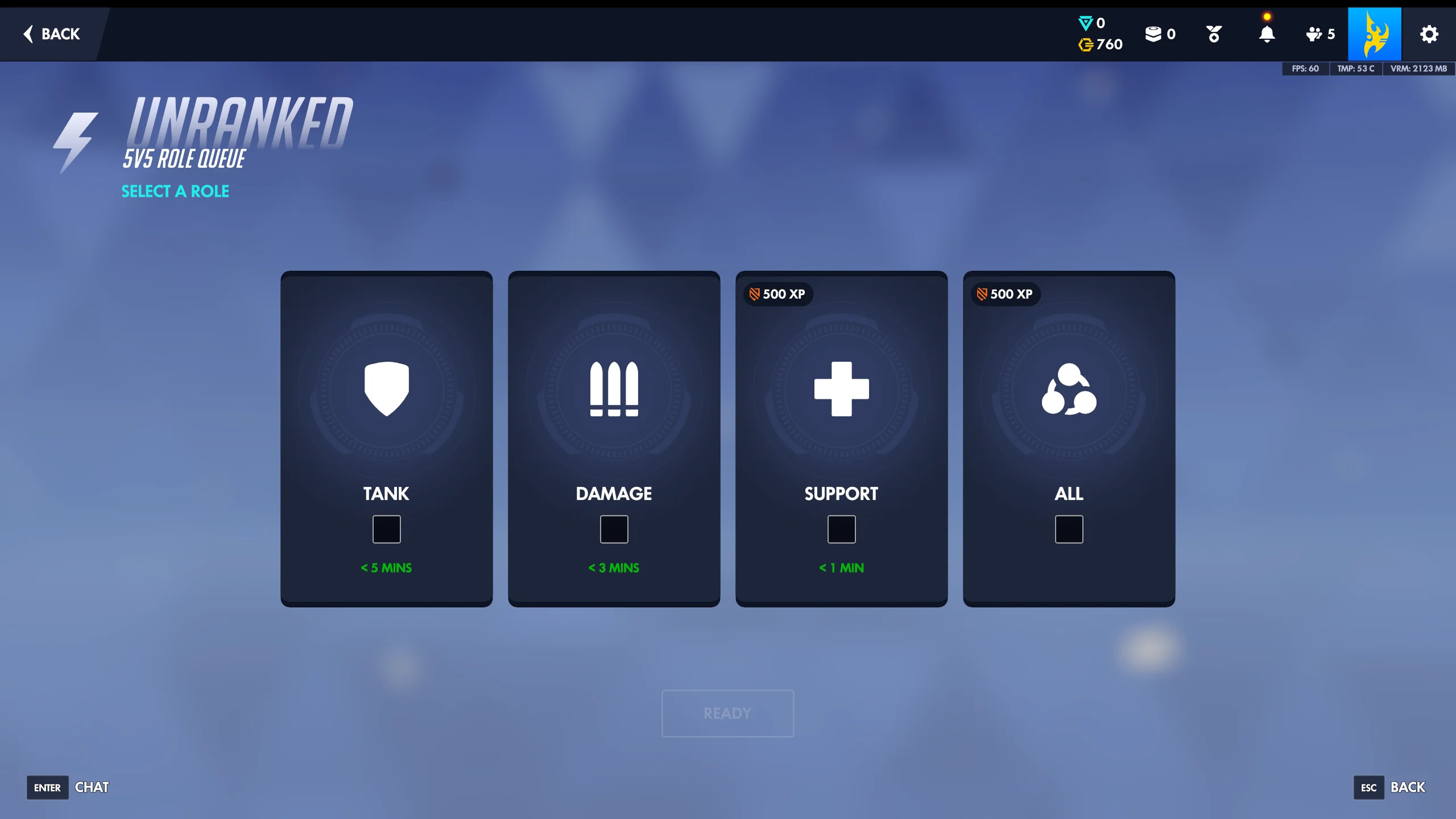
Turn off your modem and router for at least 30 seconds, then power them back on. This clears stale routing sessions and can fix temporary DNS or NAT issues. After the router fully reconnects, launch Overwatch and test a quick match (unranked games) or the practice range.
Step 2: Use Ethernet instead of Wi-Fi
If possible, connect your PC or console directly to the router with an Ethernet cable. Wi-Fi interference from walls, Bluetooth devices, microwaves, and neighboring networks can create tiny dropouts that are enough to remove you from a live match.
If you must use Wi-Fi, move closer to the router, use the 5 GHz band if the signal is strong, and avoid playing while large downloads or video streams are active on the same network.
Step 3: Stop bandwidth-heavy background activity
Pause cloud backups, game downloads, Windows updates, streaming apps, torrent clients, and large file transfers. On PC, also close overlays or launchers you do not need during play. Even if these apps do not use all your bandwidth, they can create latency spikes or packet loss.
Approach 3: Repair Overwatch and refresh Battle.net files
If your connection is stable but only Overwatch disconnects, repair the game installation. Damaged or outdated game files can cause crashes, login loops, or unexpected disconnections.
- Open the Battle.net desktop app.
- Select Overwatch 2.
- Click the gear icon next to Play.
- Choose Scan and Repair.
- Click Begin Scan and wait for the process to finish.
After the repair, restart your PC before testing again. If Battle.net itself behaves strangely, uninstalling and reinstalling the Battle.net app can also help. This does not normally remove your game installation, but you may need to point the launcher to the existing game folder afterward.
Approach 4: Reset DNS and network settings on Windows
DNS cache problems, old IP leases, or a damaged Winsock catalog can cause repeated disconnects from online games. On Windows, you can refresh these settings safely from Command Prompt.
Open Start, type cmd, right-click Command Prompt, and choose Run as administrator. Then run these commands one at a time:
ipconfig /flushdns
ipconfig /release
ipconfig /renew
netsh winsock reset
netsh int ip reset
Restart your PC after the commands complete. Then open Battle.net and test Overwatch again.
You can also try changing DNS servers to a reliable public provider. In Windows, go to Settings -> Network & internet -> your active connection -> DNS server assignment -> Edit. Try Cloudflare DNS with 1.1.1.1 and 1.0.0.1, or Google DNS with 8.8.8.8 and 8.8.4.4.
Approach 5: Allow Overwatch through firewall and security software
Firewalls, antivirus suites, VPNs, and network filters can interrupt Overwatch traffic. This is especially common after a game update, Windows update, or antivirus definition update.
- Temporarily disable your VPN or proxy and test the game.
- Open Windows Security -> Firewall & network protection -> Allow an app through firewall.
- Make sure Battle.net and Overwatch are allowed on your active network type.
- If you use a third-party antivirus, add Battle.net and Overwatch to its allowlist.
- Re-enable protection after testing; do not leave your system unprotected permanently.
If the disconnects stop when a VPN, firewall rule, or antivirus module is disabled, adjust that tool’s settings instead of keeping it fully turned off.
Approach 6: Update drivers, firmware, and system software
Outdated network drivers or router firmware can cause intermittent drops. On PC, update your network adapter driver from the motherboard, laptop, Intel, Realtek, or adapter manufacturer’s website. Avoid relying only on Windows Update if the issue has persisted for weeks.
Also install pending Windows updates and reboot. For consoles, install the latest system software and fully restart the console, not just rest mode. Router firmware updates are also worth checking in the router’s admin page, especially if multiple devices disconnect during online games.
Approach 7: Test for packet loss and contact your ISP if needed
If Overwatch still disconnects after local fixes, look for packet loss. Run a continuous ping test while playing or while the issue usually occurs:
ping 8.8.8.8 -tPress Ctrl + C to stop the test. If you see frequent request timeouts or packet loss, your connection is dropping outside the game. Test again while connected by Ethernet. If packet loss remains, contact your internet provider and ask them to check line quality, modem signal levels, and routing problems.
Conclusion
To fix Overwatch random disconnecting issues, start with server checks, then stabilize your home network, repair the game, reset DNS, and review firewall or VPN settings. Most players solve the problem by switching to Ethernet, restarting network equipment, closing bandwidth-heavy apps, or repairing Overwatch through Battle.net.
If disconnects continue across multiple games and devices, the cause is likely packet loss, router instability, or an ISP line issue. In that case, collect ping test results and contact your provider with the evidence.