Whether you are a casual user of Claude’s free tier or a power user relying on Claude Pro, you have likely encountered the dreaded "You are out of messages" notification. Unlike some AI models that give you a strict, fixed number of prompts per day, Anthropic’s Claude uses a dynamic limit system. Your limit depends on server capacity, the length of your conversations, and the size of the files you upload.
Because these limits can fluctuate, knowing exactly where you stand in your current usage cycle is crucial for managing your workflow. Here is a comprehensive guide on how to track your Claude usage limits across web and mobile platforms, plus a few insider tips on how to stretch your limits further.
How to Check Your Usage Limit on the Web App
Checking your usage on the desktop web application is straightforward and gives you the most detailed view of your current status. Claude operates on usage cycles (often refreshing every few hours), and the web dashboard shows exactly how much of your current capacity you have consumed.
Step-by-Step Guide:
- Log In: Open your browser and head over to claude.ai.
- Access Settings: Look to the bottom-left corner of the screen and click on your profile name or icon. From the pop-up menu, select Settings.
- Navigate to Usage: In the left-hand sidebar of the Settings menu, click on the Usage tab.
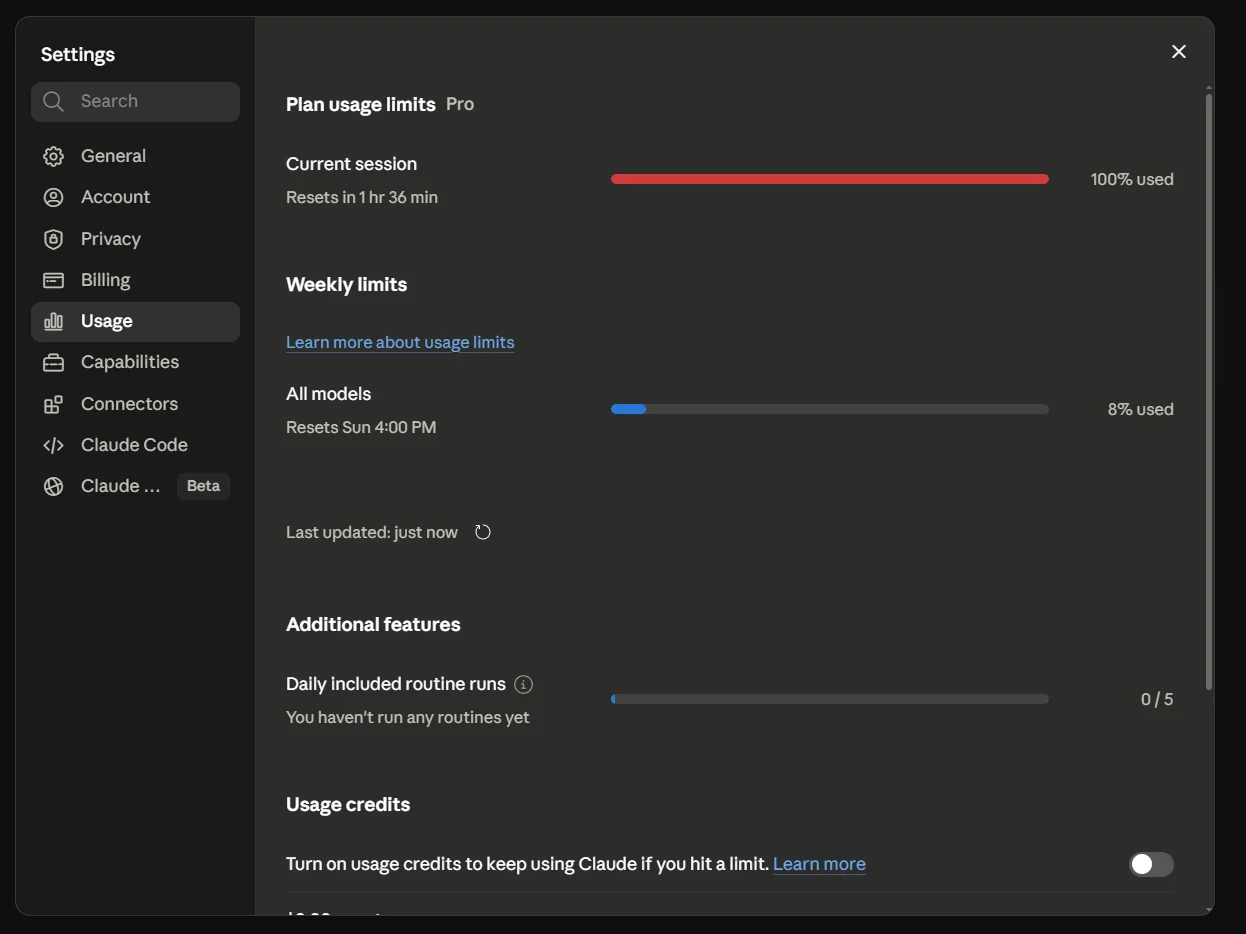
Here, you won't see a raw countdown of "10 messages left." Instead, Claude provides a progress bar. This visual dashboard indicates how close you are to hitting your limit for the current time window, allowing you to pace your remaining questions accordingly.
How to Check Your Usage Limit via the CLI
For developers and terminal power users, tracking your limits without leaving your command-line workflow is essential. There are two primary ways to do this depending on your setup.
1. Using the Official Claude Code CLI
If you have installed Anthropic's official Claude Code tool, checking your limits is built directly into the interactive prompt.
- Open your terminal (e.g., Command Prompt, PowerShell, macOS Terminal, or iTerm).
- Type
claudeand hit Enter to launch the interactive interface. - Inside the prompt, type
/usageand press Enter.
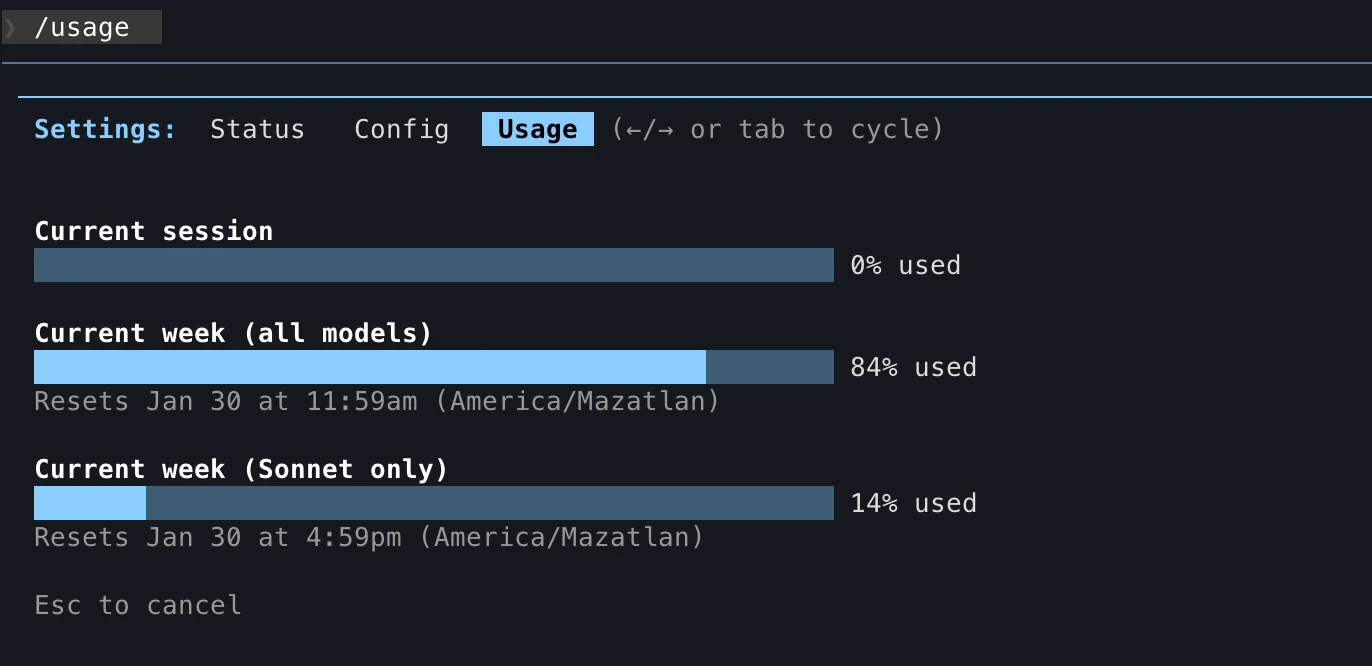
This outputs a clear breakdown of your session usage percentage, weekly usage percentage, and the exact times when those limits will reset.
2. Using cURL (Anthropic API)
If you are building your own tools and hitting the Anthropic API directly using scripts, there is no dedicated "check usage" endpoint. Instead, Anthropic includes your real-time rate limit and usage data directly inside the HTTP response headers of your API calls.
When making a standard API request, inspect the response headers for these fields:
anthropic-ratelimit-unified-5h-utilization: Shows your current session usage as a decimal (0.0 to 1.0) over a rolling 5-hour window.anthropic-ratelimit-unified-5h-reset: The Unix epoch timestamp indicating exactly when your 5-hour session window will reset.anthropic-ratelimit-unified-7d-utilization: Shows your weekly usage percentage.
To check these quickly, you can make a minimal, 1-token API call with curl -i (to print the headers) and grep for anthropic-ratelimit.
How to Check Your Usage Limit on the Mobile App
If you are brainstorming on the go using the official Claude app for iOS or Android, you can still keep an eye on your usage. The mobile interface provides a slightly simplified, at-a-glance percentage rather than the detailed dashboard found on the web.
Step-by-Step Guide:
- Open the App: Launch the Claude mobile application.
- Open the Menu: Tap the hamburger menu (the three horizontal lines) located in the top-left corner of your main chat screen.
- Go to Settings: Tap Settings, which is usually located right next to your profile picture at the top of the menu.
- Select Usage: Tap on the Usage option.
This screen will display your current usage percentage. If you see it creeping up toward 100%, it might be time to wrap up your current thought process or hold off until your limit resets.
Why Do I Run Out of Limits So Fast?
Understanding how Claude calculates usage is just as important as knowing where to check it. Every time you send a message, Claude has to "re-read" the entire conversation history to maintain context.
If you are in a very long chat thread, every new prompt requires Claude to process a massive amount of text. This consumes your usage allowance significantly faster than a short conversation. Similarly, uploading large PDFs or codebases drains your capacity much quicker than plain text prompts.
Pro Tips to Maximize Your Claude Usage
Don't let the limits slow down your productivity. Use these strategies to get the most out of every session:
- Start New Conversations Frequently: Because Claude re-reads the whole chat every time you prompt, long threads are limit-killers. Once a specific task is complete, open a brand-new chat for your next topic.
- Batch Your Questions: Instead of rapid-firing five short questions in a row, combine them into one comprehensive prompt.
- Be Selective with Uploads: Only attach files when absolutely necessary. If you only need Claude to analyze a specific paragraph from a 50-page document, copy and paste that paragraph instead of uploading the whole PDF.
By keeping an eye on your usage dashboard and employing these smart prompting habits, you can keep the ideas flowing without running into an unexpected pause!