If ChatGPT is laggy, freezes while generating, or makes Chrome unresponsive, the cause is usually local browser load rather than a permanent problem with your account. Heavy conversations, extensions, cached site data, Chrome memory settings, and graphics acceleration can all make the ChatGPT tab stutter or stop responding.
Work through the fixes below in order. They start with quick checks that take less than a minute, then move into browser cleanup and Chrome configuration changes that resolve most persistent freezing issues.
How to fix ChatGPT lagging or freezing in Chrome
The goal is to isolate whether the slowdown is caused by the current chat, Chrome itself, an extension, network instability, or your computer running out of resources. After each step, reload ChatGPT and test it again before moving to the next one.
Step 1: Refresh the tab and start a lighter chat
First, reload the ChatGPT tab. Press Ctrl + R on Windows or Command + R on Mac. If the page is stuck, close the tab completely, open a new tab, and visit ChatGPT again.
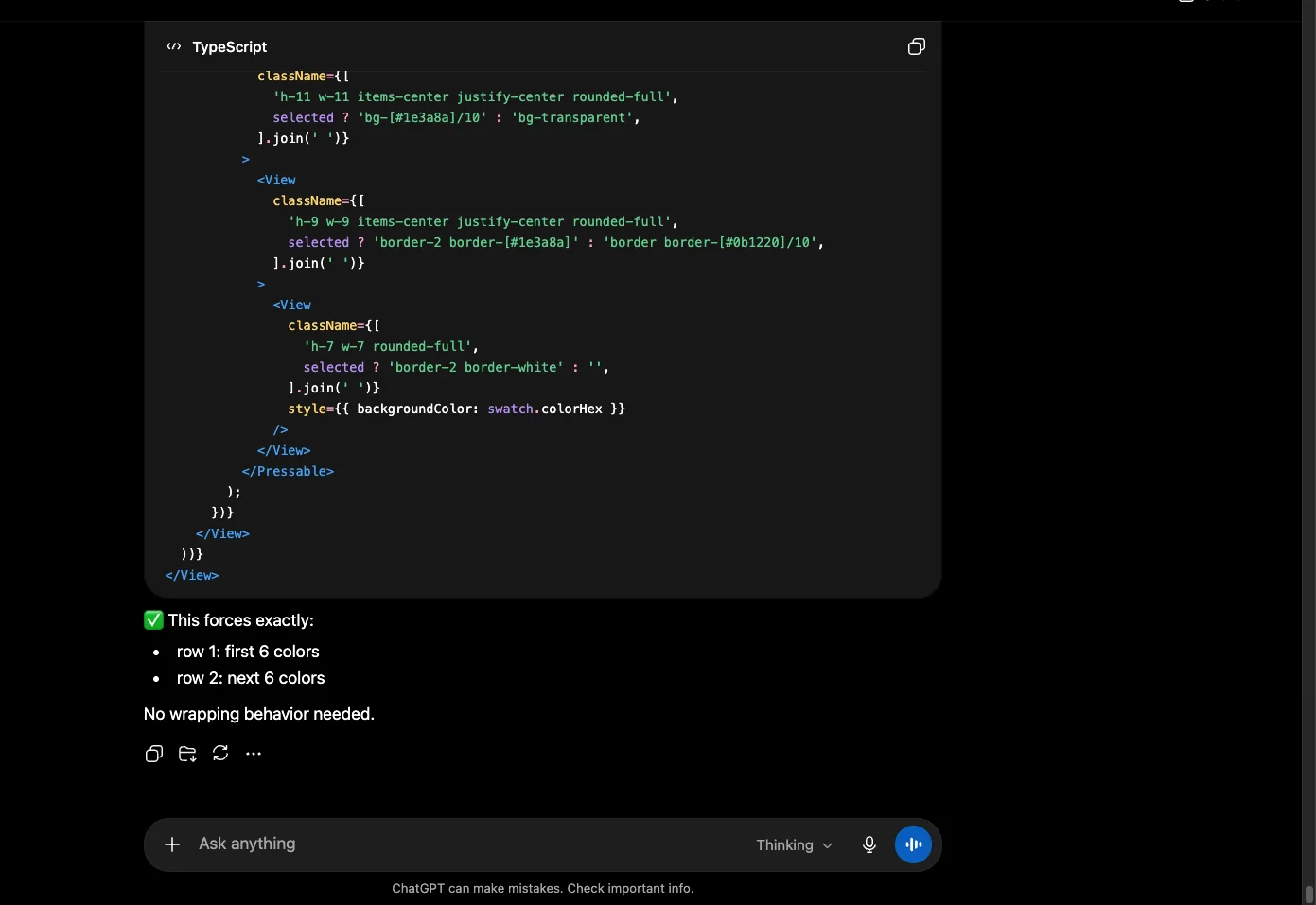
Long conversations can become noticeably slower because the browser has to manage more page content, message history, code blocks, tables, and generated text. If one specific chat freezes repeatedly, start a new chat and continue there. You can summarize the old conversation in a short prompt, then proceed in a fresh thread. In most cases, you should avoid long chat as I did:
Step 2: Check whether ChatGPT or your connection is the problem
Before changing browser settings, confirm that the issue is not temporary service instability or a weak connection. Open another website in Chrome and see whether it loads normally. If multiple sites are slow, restart your router or switch from Wi-Fi to a wired or stronger connection if possible.
You should also check the OpenAI status page. If there is an active incident, ChatGPT may feel slow, fail to finish responses, or appear frozen even when Chrome is working correctly. In that case, the best fix is to wait and retry later.
Step 3: Disable Chrome extensions that can interfere with ChatGPT
Extensions are one of the most common causes of ChatGPT lag in Chrome. Ad blockers, privacy tools, script blockers, grammar checkers, VPN extensions, dark-mode add-ons, and productivity extensions can all inject scripts into the page. That extra processing can slow down long responses or break parts of the interface.
Go to Chrome menu -> Extensions -> Manage Extensions. Turn off extensions temporarily, then reload ChatGPT. If the lag disappears, re-enable extensions one by one until the problem returns. When you identify the problematic extension, keep it disabled for ChatGPT or remove it.
For a quick test, open ChatGPT in an Incognito window with Ctrl + Shift + N on Windows or Command + Shift + N on Mac. Incognito usually runs with extensions disabled unless you have explicitly allowed them.
Step 4: Clear ChatGPT site data in Chrome
Corrupted cookies, cached scripts, or old site data can cause the ChatGPT web app to behave unpredictably. Clearing only ChatGPT data is better than clearing your entire browser history because it targets the affected site while leaving most other browsing data intact.
Open ChatGPT, click the icon to the left of the address bar, then choose Site settings. Click Delete data or Clear data, confirm the action, and reload the page. You may need to sign in again.
You can also go to Settings -> Privacy and security -> Third-party cookies -> See all site data and permissions, search for chatgpt or openai, and remove the related site data.
Step 5: Update Chrome and restart the browser
An outdated Chrome version can cause performance issues with modern web apps. ChatGPT uses a dynamic interface, streaming responses, and browser features that work best in current releases.
Go to Chrome menu -> Help -> About Google Chrome. Chrome will check for updates automatically. If an update is available, install it and click Relaunch. After Chrome restarts, open ChatGPT again and test a new prompt.
Step 6: Review Chrome memory and performance settings
If your computer is low on RAM, ChatGPT may freeze when several tabs or apps are open. Close unnecessary tabs, especially video streaming pages, web apps, spreadsheets, online editors, and other AI tools. Also close unused desktop applications.
Chrome has performance features that can help, but they can also affect active tabs in some cases. Go to Settings -> Performance. Turn on Memory Saver if your system is low on memory. If ChatGPT is being suspended too aggressively in the background, add ChatGPT to the list of sites that should always stay active.
Use Chrome Task Manager with Shift + Esc to check whether a specific tab or extension is consuming excessive memory or CPU. End the worst offenders, then reload ChatGPT.
Step 7: Toggle hardware acceleration
Hardware acceleration lets Chrome use your graphics processor for rendering. On some systems, especially those with outdated graphics drivers or unusual GPU configurations, it can cause freezing, black areas, stuttering, or high CPU usage. On other systems, turning it on improves smoothness.
Go to Settings -> System. Find Use graphics acceleration when available. If it is on, turn it off and relaunch Chrome. If it is already off, try turning it on instead. Test ChatGPT after the relaunch to see which setting works better for your device.
Step 8: Reset Chrome flags and experimental settings
If you have changed Chrome experimental features, one of them may be affecting page rendering, memory management, or networking. Type chrome://flags in the address bar and press Enter. Click Reset all, then relaunch Chrome.
This does not erase your bookmarks or passwords. It only restores experimental browser flags to their default state, which is useful when Chrome behaves strangely after previous tweaks.
Step 9: Test with a new Chrome profile or another browser
If ChatGPT still freezes, create a clean Chrome profile to rule out profile corruption. Click your profile icon in Chrome, choose Add, create a temporary profile, and open ChatGPT there before installing any extensions. If ChatGPT works normally in the new profile, the issue is likely tied to your original profile settings, extensions, or stored data.
As a final comparison, test ChatGPT in another browser such as Edge, Firefox, or Safari. If it works elsewhere but not in Chrome, continue troubleshooting Chrome. If it freezes everywhere, the issue is more likely your network, device resources, or a temporary ChatGPT service problem.
Conclusion
Most ChatGPT freezing problems in Chrome are fixed by starting a fresh chat, disabling problematic extensions, clearing ChatGPT site data, updating Chrome, and adjusting performance or hardware acceleration settings. Test after each change so you can identify the real cause instead of changing everything at once.
If the issue only happens during service outages or very long chats, there may be nothing wrong with Chrome. In that case, wait for the service to stabilize or move the conversation into a shorter, cleaner thread.